Sincronice — How to Use the App
A complete guide to planning trips and finding the perfect dates with friends.
1. Getting Started
Sincronice is built for both quick, anonymous participation and fully managed event planning through a registered account. When you log in with an email address, you gain access to the complete feature set: you can create your own events, join existing ones, receive direct invitations, and view a personalized dashboard containing everything you're part of. This makes it easy to return to ongoing plans and track upcoming trips.
Anonymous users can still join events using an invite code and add their availability where allowed, but they do not have access to invitations or a dashboard. Instead, they receive an access key, which lets them return later and update their availability without creating an account. This works well for one-off or casual participation.
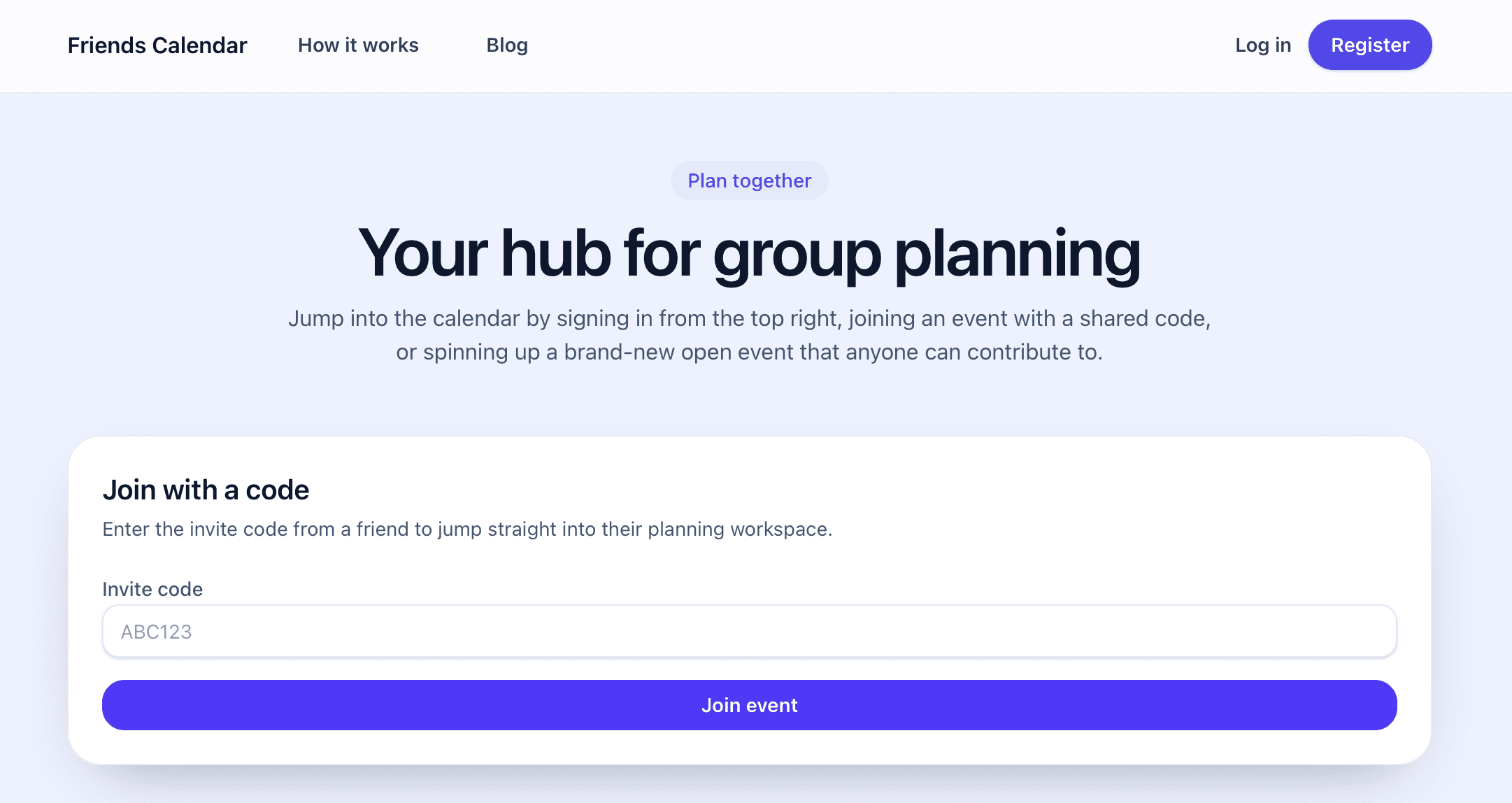
Show the homepage hero section with Join-by-code and login/register buttons.
2. Event Types in Sincronice
When creating an event, the organizer chooses how collaborative or controlled the planning process should be. Sincronice offers three event types, each of which determines who can add people and who can enter or edit availability.
Admin Only
This mode gives the organizer full control. Participants can explore filters and view results but cannot add or modify availability. This setting is helpful when the organizer wants to curate availability manually or prevent accidental changes.
Self-managed
A balanced option where participants can add their own availability (one range per person), while the organizer still retains the ability to add or remove people and make adjustments. This mode suits small to medium groups where everyone contributes but the admin wants structured control.
Open for all
Every participant receives admin-like permissions. Anyone can add attendees and edit availability entries. This setup works well for groups of close friends who want a shared, collaborative planning workspace.
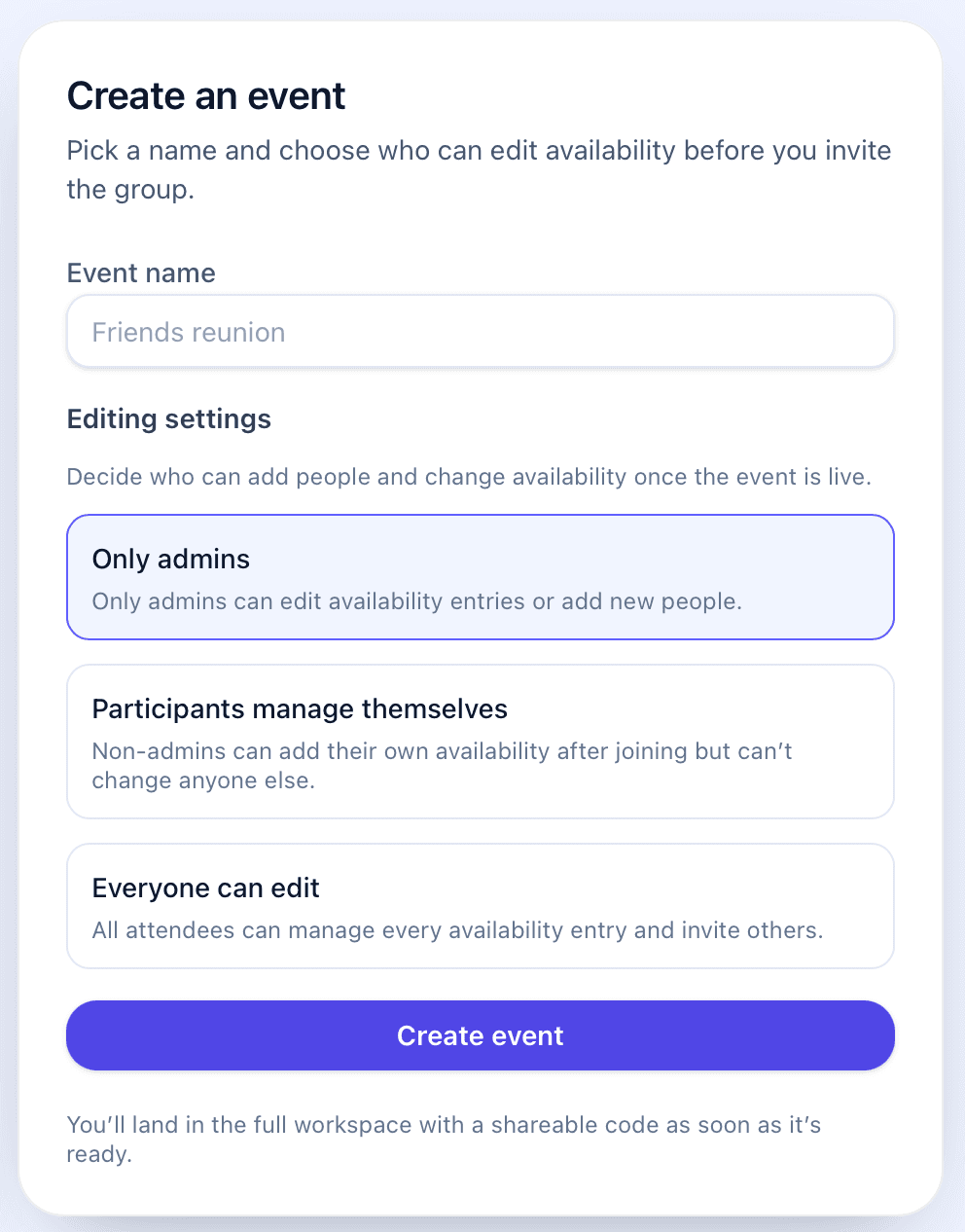
Show the Create Event screen with event type selection.
3. What Admins Can Do
Admins always have access to additional configuration tools regardless of the chosen event type. They can:
- Add or remove participants
- Adjust anyone’s availability
- Set default filters such as minimum or maximum trip length
- Mark certain people as mandatory participants
- Manage anonymous users by viewing and resending their access keys
These tools help keep the event organized and ensure the planning experience stays consistent.
4. Joining an Event
Once an event is created, participants can join through a code or through a direct invitation.
Joining via code
Anyone—logged-in or anonymous—can join by entering the event’s unique code. Logged-in users will see the event appear in their dashboard automatically. Anonymous users will be asked to enter a name or provide an access key if they've already participated before.
Joining via invitation
Only logged-in users can receive invitations. When someone invites you, a notification badge appears next to your profile icon. In the invitations view, you can join the event immediately or decline it to remove it from your inbox.
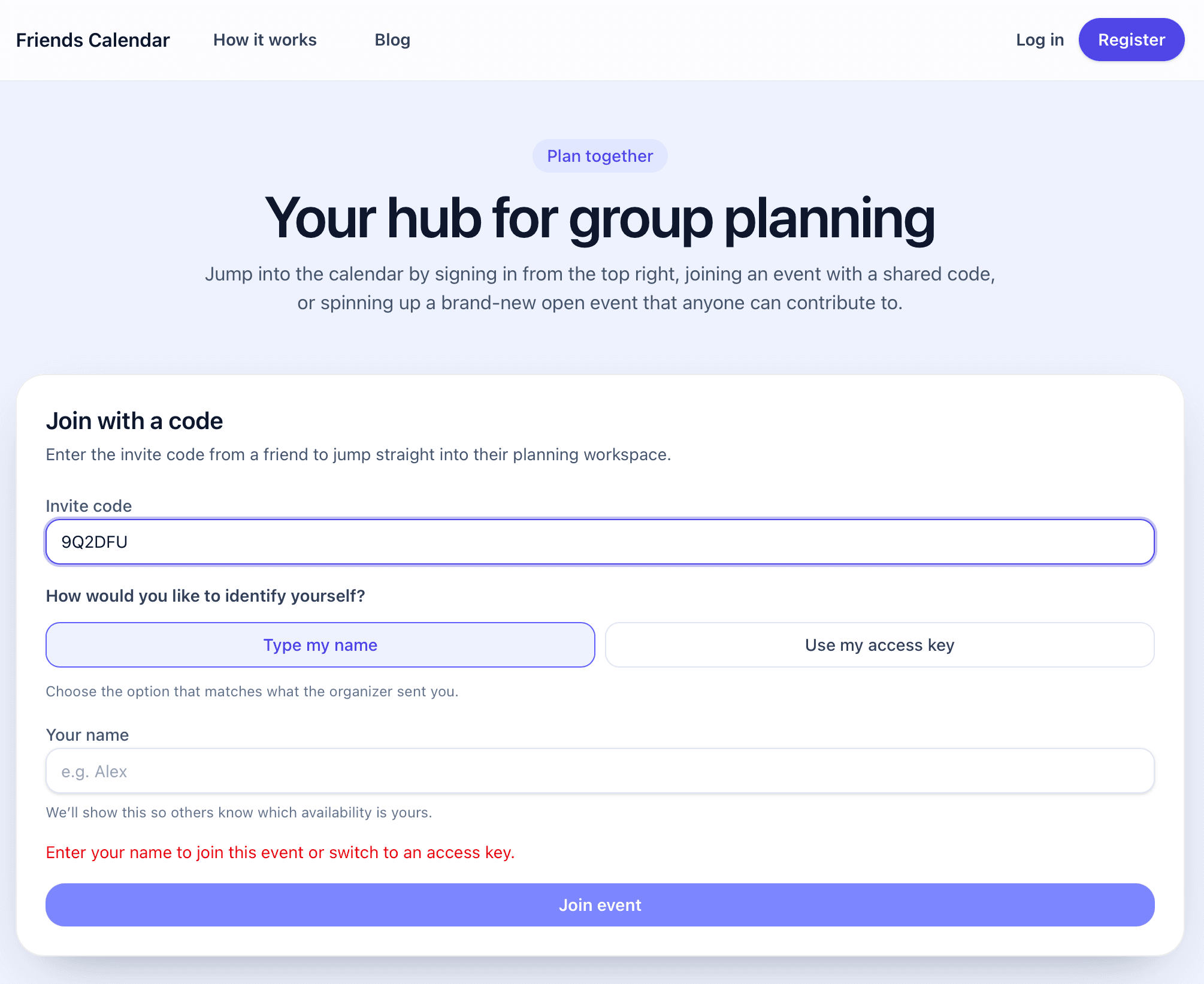
Show the Join screen with code entry, name field, and access key option.
5. Adding Your Availability
After joining an event, you can enter your availability—unless the event is Admin Only. The interface allows you to type your name, add one or more date ranges, and save your changes. Anonymous users are shown a personal access key, which they should store safely so they can return later to update their availability.
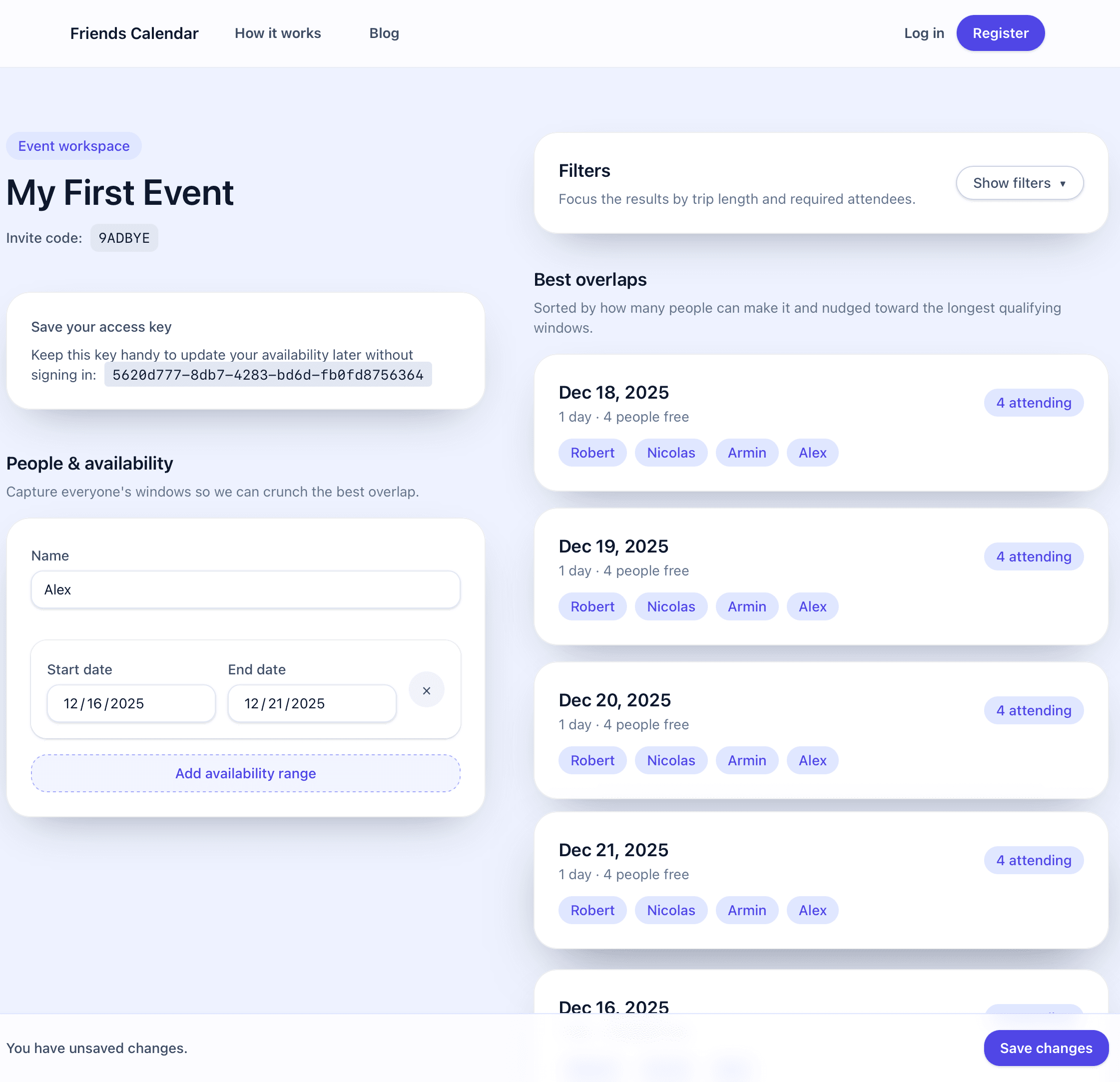
Show the People & Availability section with date range inputs.
6. How Sincronice Determines the Best Date Windows
The core feature of Sincronice is its ability to analyze everyone's availability and suggest the most compatible date windows. These results are sorted based on:
- How many participants can attend
- Whether the window matches the desired trip length
Longer overlaps are prioritized because they provide more flexibility for multi-day gatherings. You can refine results further by setting minimum and maximum length requirements or marking specific participants as mandatory. Results update instantly and display who is available during each window.
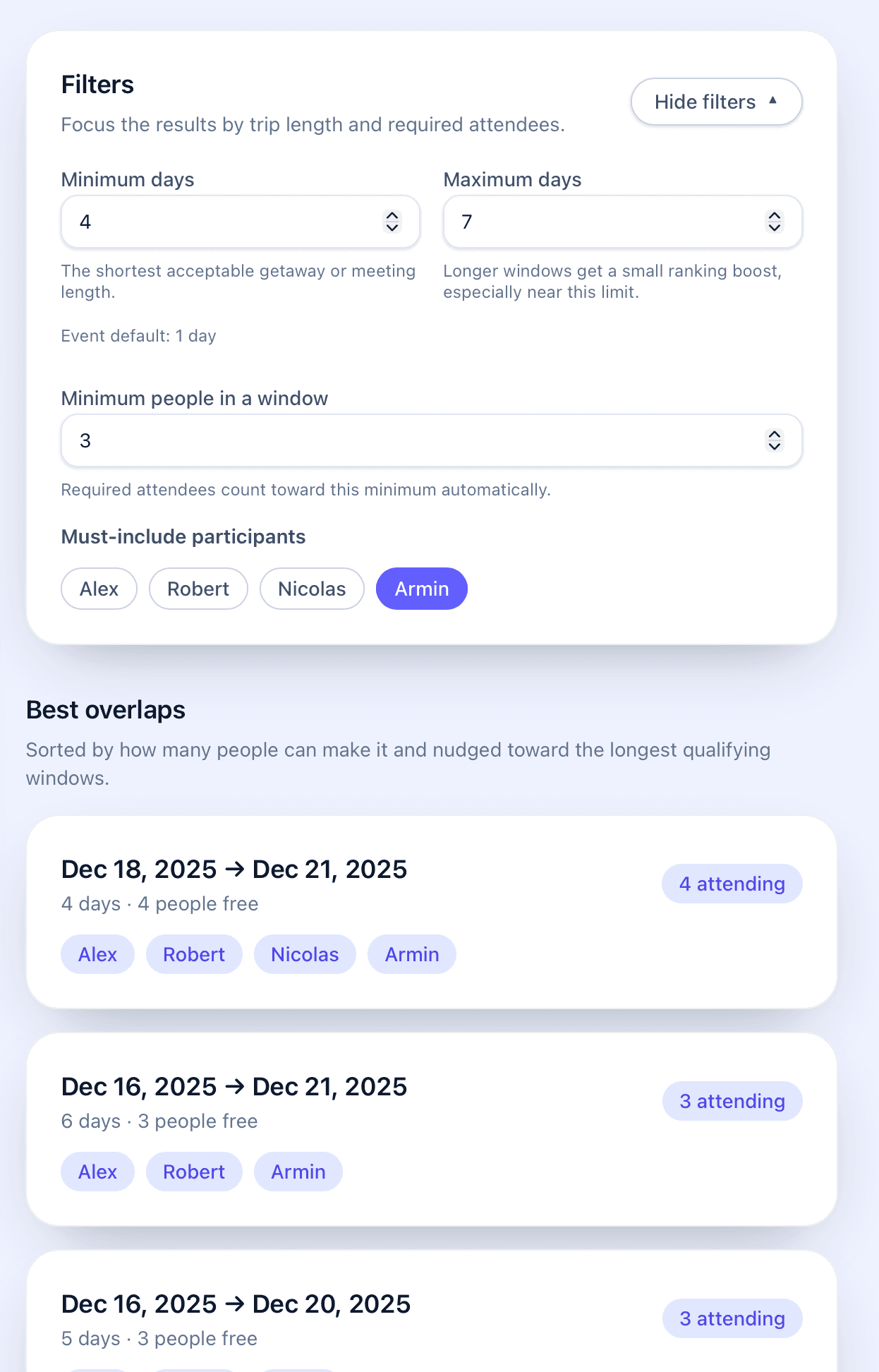
Show the Best Overlaps view with date suggestions and attendees.
7. Why Event Creation Requires Email Registration
Event creation requires a registered email address to ensure accountability and to prevent automated or abusive event generation. This guarantees that events on Sincronice are created by real users with a genuine intention to plan something. Joining events, however, remains open to everyone—no account required.
8. Invitations and Notifications
Logged-in users can invite others directly by username. When an invitation arrives, a badge appears next to your profile icon. The invitations page shows who invited you and which event you're being asked to join. At that point, you can either:
- Accept the event, making it appear in your dashboard, or
- Decline the invitation
This lightweight system keeps invitations visible yet unobtrusive.
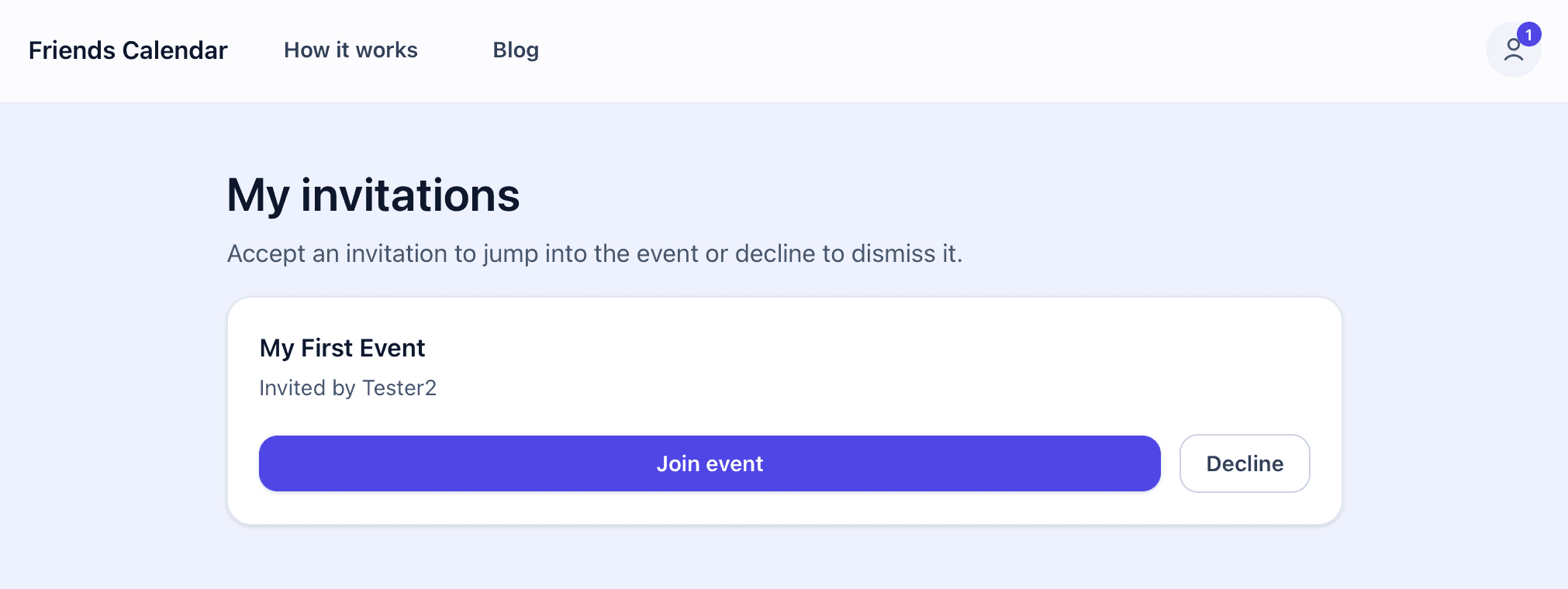
Show the My Invitations page with Join and Decline options.
9. Your Dashboard
For logged-in users, the dashboard displays all upcoming events at a glance. Events you manage are grouped together, while events you’ve joined appear separately. This structure makes it easy to stay organized and revisit planning details whenever needed.
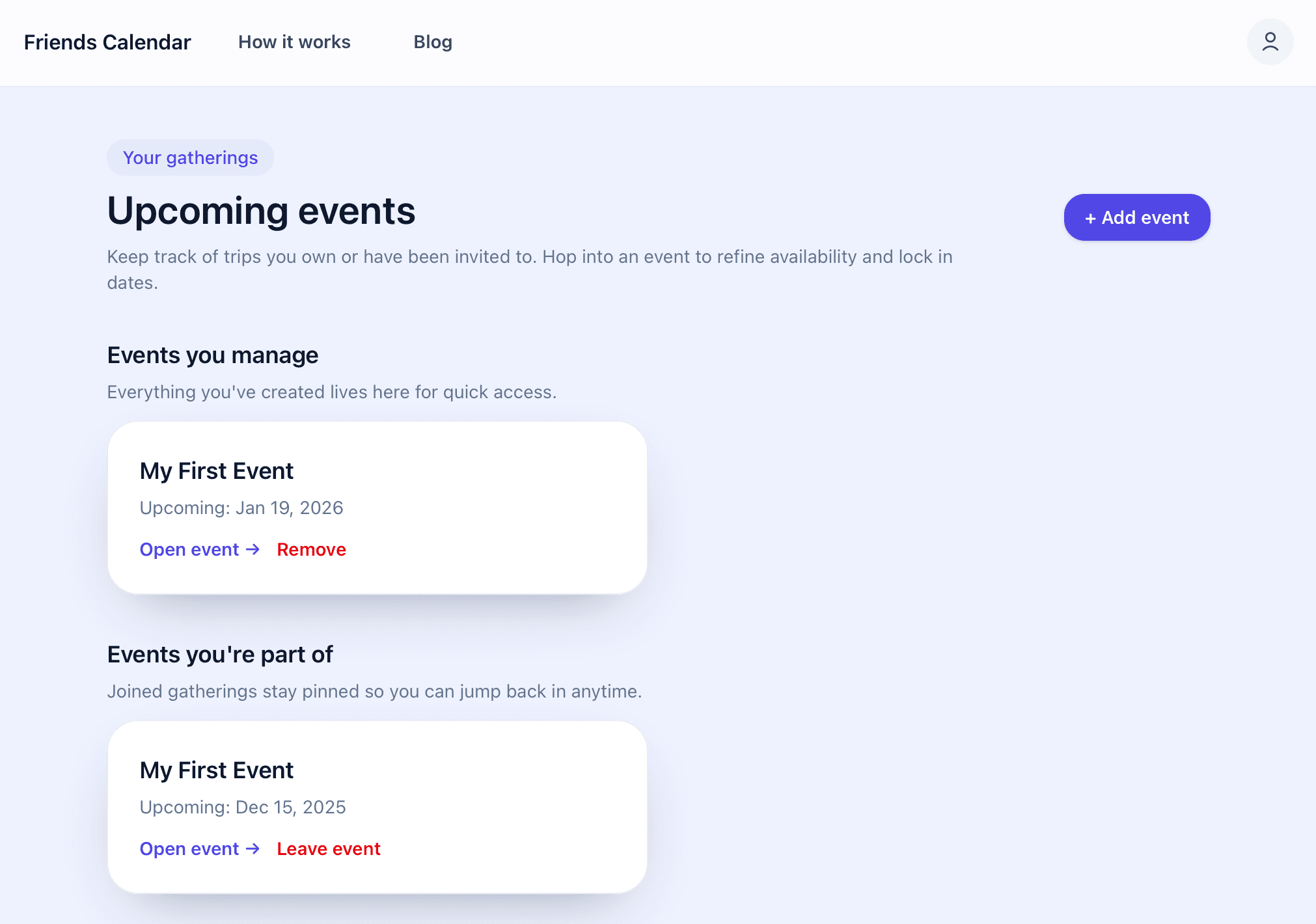
Show the Upcoming Events page with multiple event cards.